> For the complete documentation index, see [llms.txt](https://help.transform.ai/llms.txt). Markdown versions of documentation pages are available by appending `.md` to page URLs; this page is available as [Markdown](https://help.transform.ai/user-settings/choosing-your-ai-model.md).
# Choosing Your AI Model
### Overview
The Transform agent can either pick a model for each request automatically or always use a model you choose.
You can change this setting from inside a Console conversation or from **User Settings**. Both places edit the same setting.
### Key Concepts
* **Transform Auto**: Transform sends each request to the best available model from the providers you trust.
* **Direct model**: one model you choose that is used for every request.
* **Trusted providers**: the AI providers Transform Auto is allowed to send your data to (Anthropic, OpenAI and xAI).
* **Priority order**: the order you prefer providers in. It is saved as a preference.
{% hint style="info" %}
Your model choice is a personal setting. It applies to all of your conversations and to every message you send after saving, including your messages in shared channels. It does not change the model for other teammates.
{% endhint %}
### Change the Model in a Conversation
{% stepper %}
{% step %}
### Open the model selector
In the Console message box, click the model selector in the bottom-left corner of the composer toolbar, next to **Connectors**. The same selector also appears in the conversation header.
It shows the current model, for example **Transform default**, or a provider and model name such as **Anthropic · claude-...**.
{% endstep %}
{% step %}
### Choose a routing mode
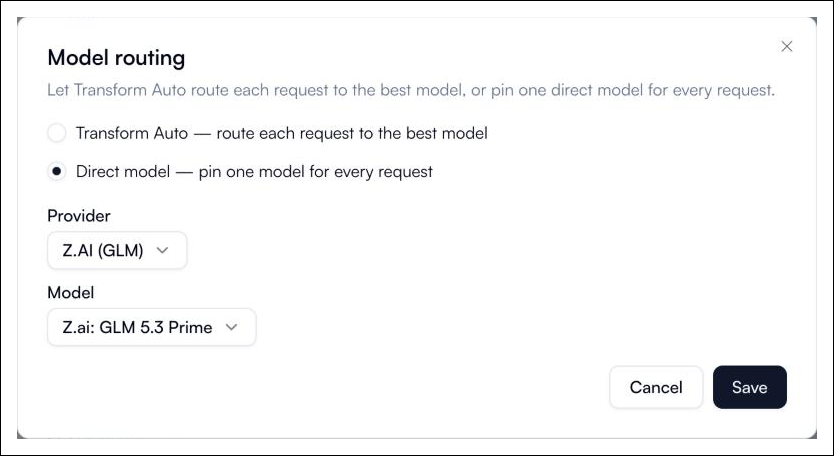
The **Model routing** dialog opens. Choose one option:
* **Transform Auto**: route each request to the best model.
* **Direct model**: pin one model for every request.
{% endstep %}
{% step %}
### Configure the option
* For **Transform Auto**, turn on each provider you trust under **Trusted providers**. You can drag providers in **Priority order** to set your preference.
* For **Direct model**, select a **Provider**, then a **Model**. The newest model from that provider is selected for you, and you can change it.
{% endstep %}
{% step %}
### Save
Click **Save**. The next message you send uses the new setting.
{% endstep %}
{% endstepper %}
### Change the Model from User Settings
{% stepper %}
{% step %}
### Open Agents settings
Open **User Settings** and select **Agents**.
{% endstep %}
{% step %}
### Find the model section
Go to **Transform Agent Model**, at the top of the page.
{% endstep %}
{% step %}
### Choose and configure a mode
Select **Transform Auto** or **Direct model** and configure it as described above.
{% endstep %}
{% step %}
### Save
Click **Save** in the model section. The MCP connections and instructions sections on the same page are saved separately.
{% endstep %}
{% endstepper %}
### Set the Model for an Agent Teammate
Agent teammates can't sign in to choose their own model, so a manager sets it for them.
1. Open the teammate's detail page.
2. Select the **Model** tab.
3. Choose **Transform Auto** or **Direct model**, configure it, then click **Save**.
This model is used when the teammate works in Slack and in agent runs. You need permission to update teammates to change it.
### Best Practices
* Use **Transform Auto** unless you need consistent behavior from one specific model.
* Turn off any provider your organization does not allow to receive your data.
* Before attaching images, check that your direct model can read them.
### Troubleshooting
"Select at least one trusted provider before saving."
Transform Auto needs at least one trusted provider. Turn on at least one provider, then save again.
"Select a model before saving."
With **Direct model** selected, choose both a **Provider** and a **Model** before saving.
"... can't read images"
The model you pinned can't read images. Switch to **Transform Auto** or to another model, or remove the image from your message.
The model list doesn't load
The list of available models is loaded live. Reload the page. If the problem continues, check your access with an administrator or contact support.
### Summary
Change your model from the model selector in any Console conversation or from **User Settings > Agents**. Both edit the same personal setting, which applies to all of your conversations.
Related:
* Console
* How AI Powers Transform
---
# Agent Instructions
This documentation is published with GitBook. GitBook is the documentation platform designed so that both humans and AI agents can read, navigate, and reason over technical content effectively. Learn more at gitbook.com.
## Querying This Documentation
If you need additional information that is not directly available in this page, you can query the documentation by asking a question.
Perform an HTTP GET request on the following URL with the `ask` and `goal` query parameters:
```
GET https://help.transform.ai/user-settings/choosing-your-ai-model.md?ask=&goal=
```
`ask` is the immediate question: it should be specific, self-contained, and written in natural language.
`goal` is what the user is ultimately trying to achieve, the reason they need the answer. Sharing it helps GitBook give you a better, more relevant answer. A goal is most helpful when it describes the outcome the user wants rather than restating the question. For example, with `ask=how do I create an API token`, a goal like `automate deployments from our CI pipeline` lets GitBook tailor the answer to that use case.
The response will contain a direct answer to the question and relevant excerpts and sources from the documentation.
Use this mechanism when the answer is not explicitly present in the current page, you need clarification or additional context, or you want to retrieve related documentation sections.